The 2026 Urban Resilience Exercise: Your 30-Minute Network Survival Guide

Three settings, three screenshots, three agreements and you will get through this exercise just fine. This is only mobile data throttling — you can still make calls and send texts!
※ For the actual dates, times and content of the exercise, please follow the announcements of the government authorities ※
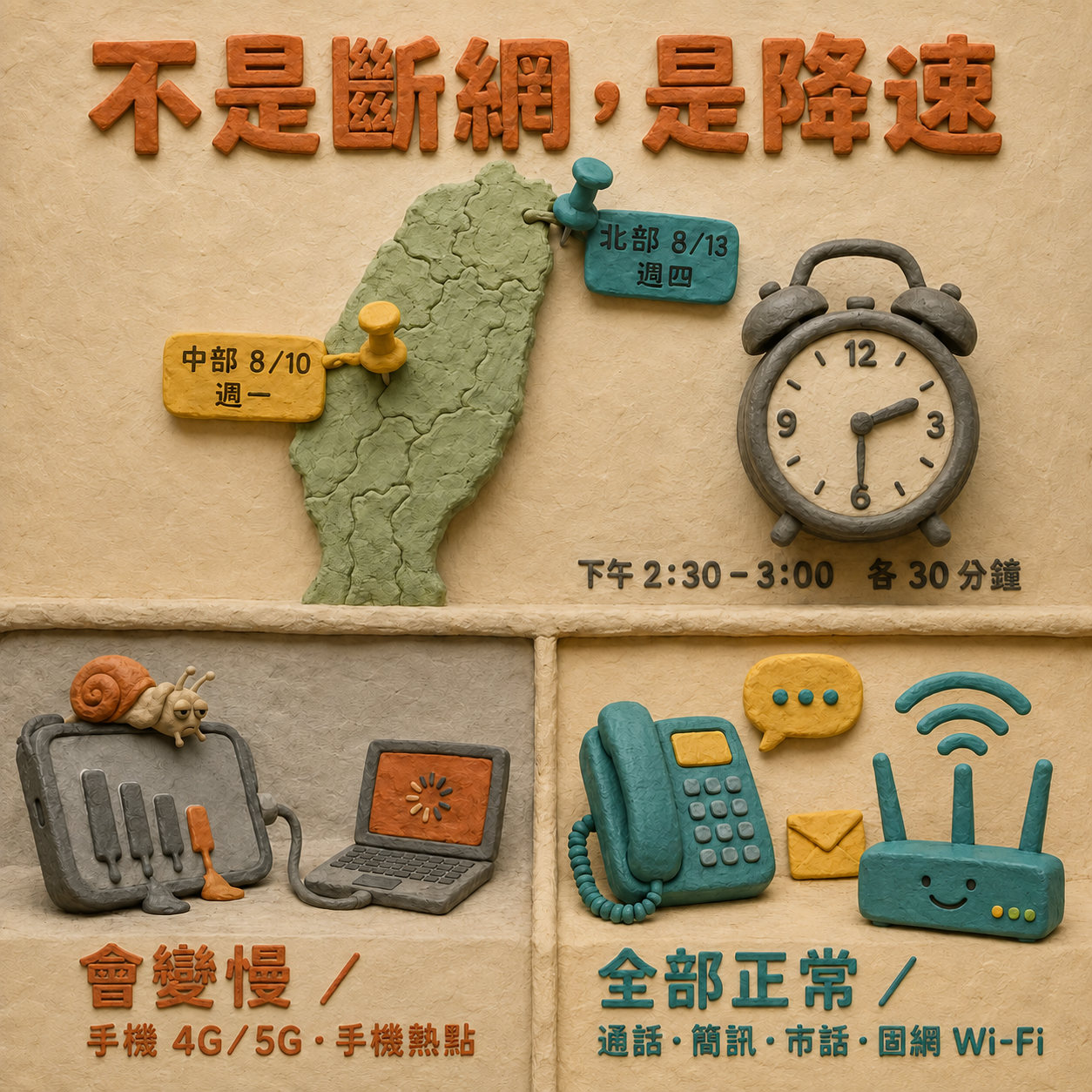
Check the time and place of the exercise first — 30 minutes each
Once the exercise starts, browsing on your phone’s 4G/5G, and the hotspot you share to laptops and tablets, will be extremely slow
Phone calls, text messages, disaster warning alerts, 110/119: all normal
※ For the actual dates, times and content of the exercise, please follow the announcements of the government authorities ※
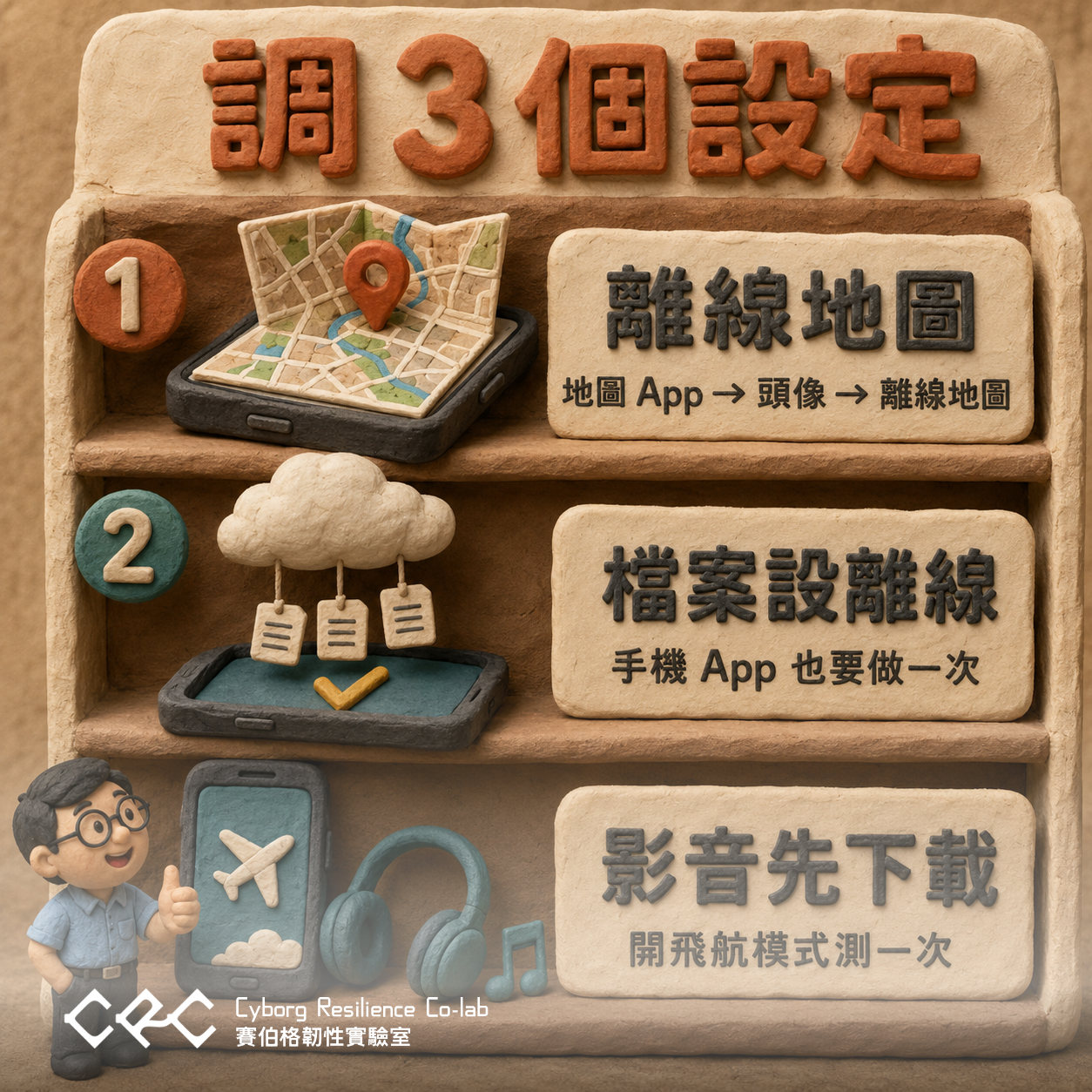
Change 3 settings
All of them are free features built into your phone or computer — a few taps and they are working.
1. Set up offline maps Google Maps → tap the profile picture in the top right → “Offline maps” → “Select your own map” → download the area around your home, the area around your office, and everywhere else you regularly pass through.
2. Set cloud files to be available offline For the slide decks, quotations and contract PDFs you need that afternoon, right-click them on Google Drive/OneDrive/Dropbox or whichever cloud drive you use and choose “Available offline” or “Always keep on this device.” Do it once in the mobile app as well.
3. Save music and videos Download the podcasts / music / videos you want for your commute in advance.
Once you are done, remember to turn off all Wi-Fi + switch on airplane mode, and test that these offline files really work.
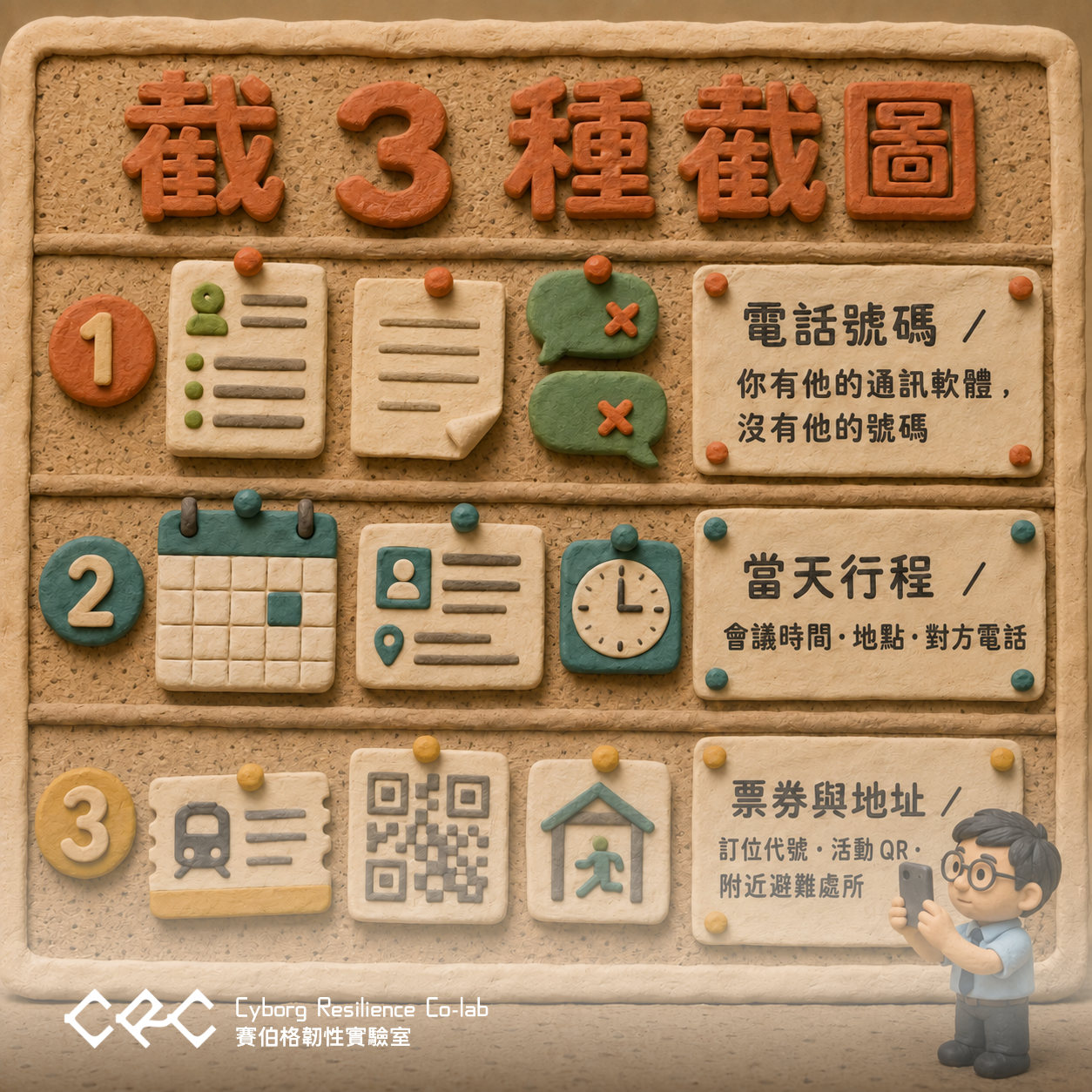
Take 3 kinds of screenshots
Just save them to your photo album — you can look at them without a network.
1. Phone numbers Family, school/after-school care, your manager, the clients you need to contact that day. Plenty of people only have someone’s LINE and have no idea what their mobile number is. Remember to copy them onto a slip of paper for your wallet too — that survives a dead phone battery.
2. That day’s schedule Meeting times, places, the other party’s name and phone number.
3. Tickets and addresses For paid high speed rail and Taiwan Railway bookings, screenshot the “booking code (number)” and then collect the paper ticket with the booking holder’s ID; event QR codes, the street addresses you are visiting, and the shelters near your home/office (you can look these up in the air-raid shelter section of the National Police Agency, Ministry of the Interior, or download the 「警政服務」 police services app in advance and save the offline map inside the 「消防防災 e 點通」 fire and disaster prevention app).
Note 1: Both the high speed rail and Taiwan Railway companies explicitly prohibit the use of screenshotted ticket QR codes.
Note 2: For rules on screenshotting event QR codes, please follow the terms of each organization/company.
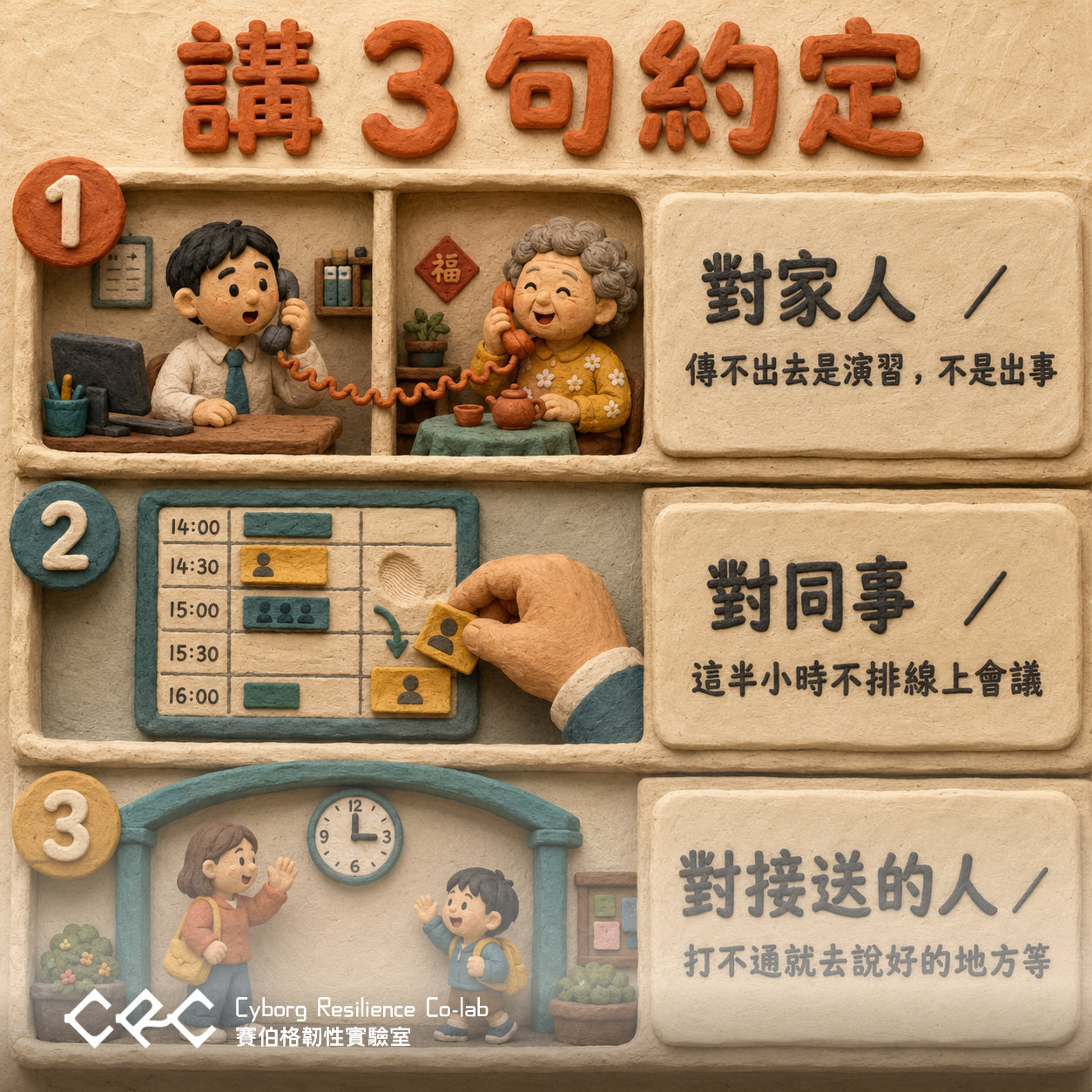
Make 3 agreements
It doesn’t cost a cent — you just have to say it out loud.
1. To family, elders and friends “Between 2:30 and 3:00 pm on 8/13, LINE messages may not go through — that’s the network throttling drill. If anything comes up I’ll call you directly, and you can text me.” → This one sentence saves the other person a whole afternoon of anxiety~
2. To colleagues “No online meetings during this half hour.” Move the 14:30 video call earlier to 14:00, or later to 15:10; if it absolutely has to happen, switch it to a voice-only call or walk over and talk face to face.
3. To colleagues out in the field and whoever picks up the children Agree on a “check-in time + meeting point,” for example “I’ll call you at 15:00; if you can’t get through, wait for me in the ground-floor lobby.” Whenever you cannot reach each other at the agreed time, head instead for the fixed meeting point you settled on in advance.
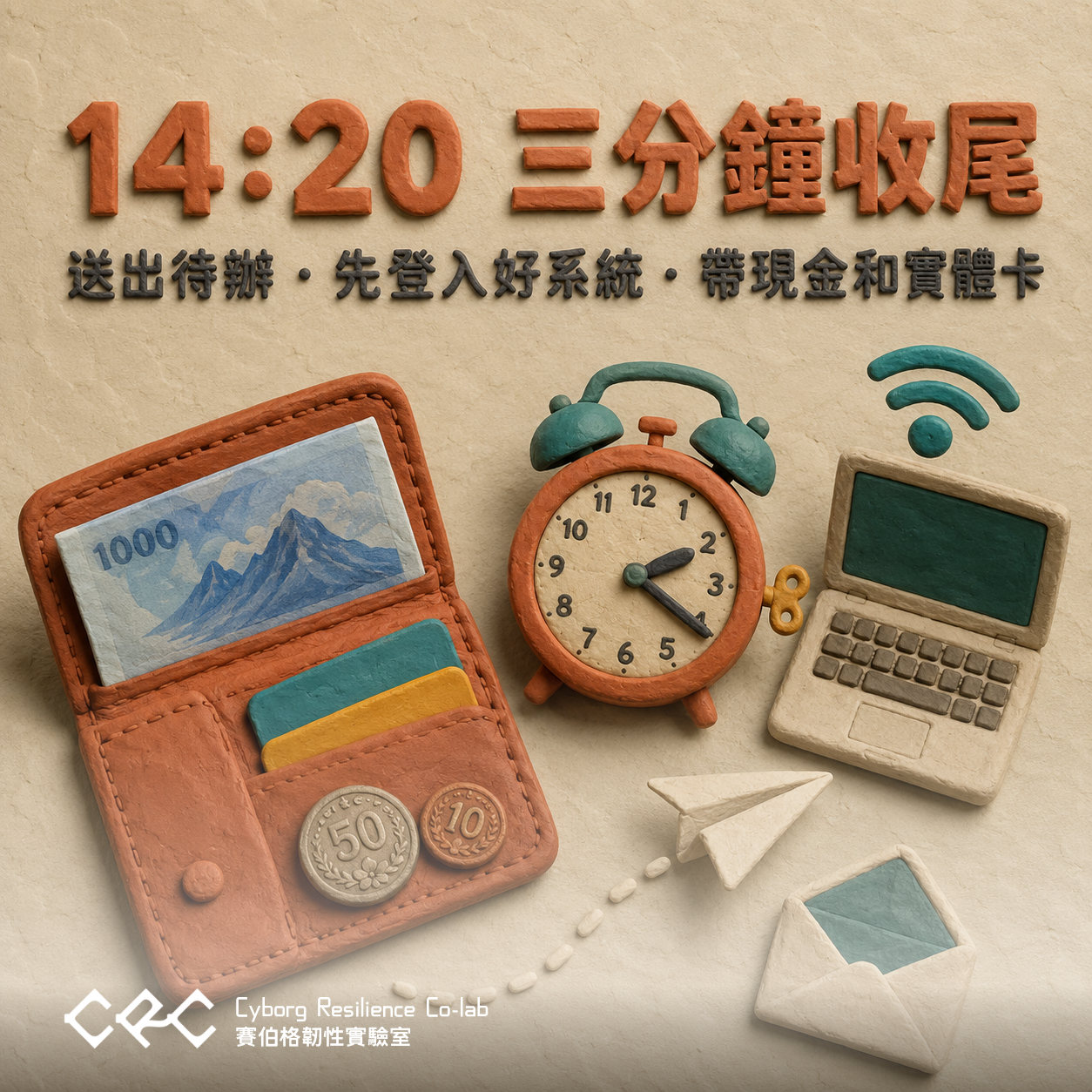
14:20 on the day: a 3-minute wrap-up
-
Approvals, reports and attachments you send from your phone: hit send before 14:25 and don’t cut it fine.
-
If your company systems, VPN or online banking need push verification from a phone app, log in on your computer beforehand and don’t log out during that half hour (systems that use SMS verification codes are unaffected)
-
If you need to place an order, transfer money or upload a tender, handle it on a computer on fixed broadband, or simply avoid this half hour
-
Wallet check: cash + a physical EasyCard/iPASS + a physical credit card. When the connection is very slow, the payment barcode in a mobile payment app may not open.
-
Check that your laptop is on the office Wi-Fi rather than your own phone hotspot

14:30–15:00: how to spend these 30 minutes
Things you can do
-
Connect to the fixed-broadband Wi-Fi at the office or at home and you will barely notice a thing
-
If you need someone, call them; if it isn’t urgent, text them
-
Schedule it as an “offline work block”: proofread on paper, write documents, tidy your desktop, walk over and finish a conversation with a colleague
Things not to do
-
Don’t hammer refresh. The more people retry, the slower it feels
-
Don’t go changing network settings or the APN — it is very easy to forget how to change them back afterwards
-
Don’t rush to call your telecom’s customer service

After 15:00
If the network doesn’t come back on its own: switch airplane mode on for 10 seconds and then off again, or simply restart the phone.
Then spend two minutes asking yourself one question: which thing just now was the most stuck? Was it not being able to find someone’s phone number, not being able to pay, or not being able to open a file? Write it down — because when the network is damaged by a real typhoon or earthquake, nobody announces the time in advance.
Further reading: Why Run a Mobile-Network Throttling Drill? Is There Any Point?
※ For the actual dates, times and content of the exercise, please follow the announcements of the government authorities ※